


Managing terminal report cards doesn't have to be a stressful or time-consuming ordeal for teachers and school administrators. With the SchResult portal, your school can seamlessly transition from chaotic paperwork to clean, automated digital processing.
This comprehensive, all-in-one guide walks you through the entire result workflow lifecycle: preparing initial scores, modifying active records, and securely publishing final report cards to parents and guardians.
Prerequisites: System Configuration & Onboarding
Before you can begin grading students or generating terminal report sheets, ensure that your administrative foundation is completely set up within the system. You cannot prepare or process scores without completing these vital configuration steps:
- Class Tiers & Arms Setup: All classrooms and class segments (such as Creche, KG 2, or Nursery 1) must be fully mapped out in your school panel.
- Student Enrollment & Profiles: Every student must be actively registered within their designated class arm with an assigned unique registration number and a uploaded passport photograph.
- Subject Management: Your school's curriculum subjects (e.g., Cultural and Creative Arts, Drawing and Color, Letter Work) must be added and active so they can be assigned to student sheets.
Section 1: Preparing Results from Scratch
To begin inputting student grades, you must first navigate to the correct workspace and configure the structural parameters for your grading sheet.
Step 1: Access the Results Module
- Open the Results Menu: On the left-hand primary navigation sidebar, locate and click on the Results option (marked as
1in figure 1). - Launch the Preparation Panel: Once the results overview loads, look at the top right-hand corner of your screen. Click the Prepare Results button (marked as
2in figure 1) to open the configuration workspace.
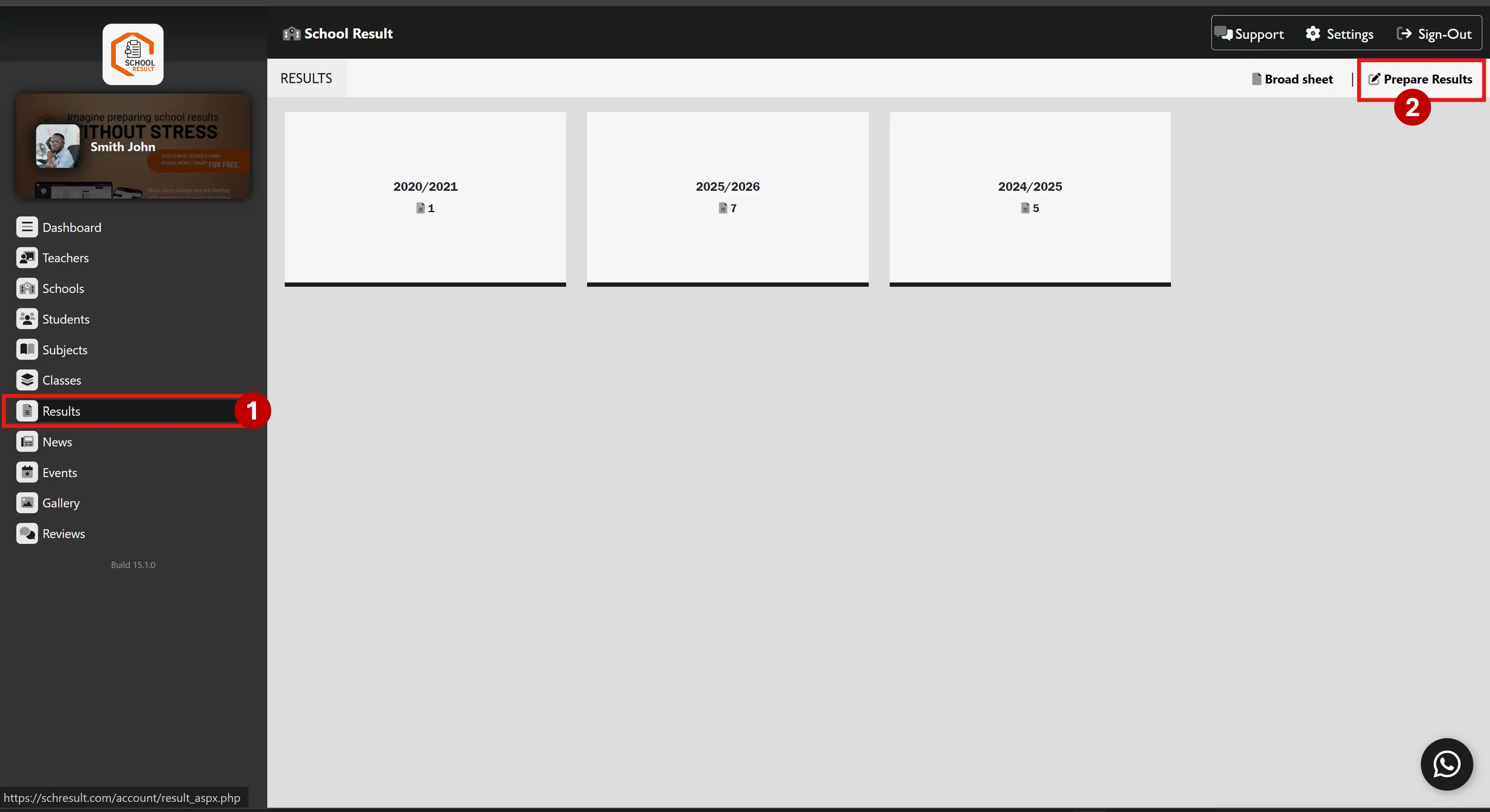
Figure 1
Step 2: Select Formats, Students, and Subjects
- Verify Session & Class: Look at the top status bar (marked as
1in Figure 2.) to ensure you are working within the correct academic session, term, and class tier (e.g., 2025/2026, 3rd Term, Creche). - Choose a Result Format: Select your school's assessment breakdown under the Result Format section (marked as
2in Figure 2.). For example, you can select the 20-20-60 template if your term uses two Continuous Assessments weighted at 20% each and a final exam weighted at 60%. - Select the Student: From the Select Student roster panel on the left (marked as
3in Figure 2.), click on the name of the student whose scores you want to enter. - Choose Subjects: In the Select Subjects column on the right (marked as
4in Figure 2.), check the boxes next to the subjects the student is registered for (e.g., Cultural and Creative Arts, Drawing and Color, etc.). - Proceed to Score Entry: After finalizing your selections, click the Save Result button at the top right (marked as
5in Step 2.) to load the grade input sheet.
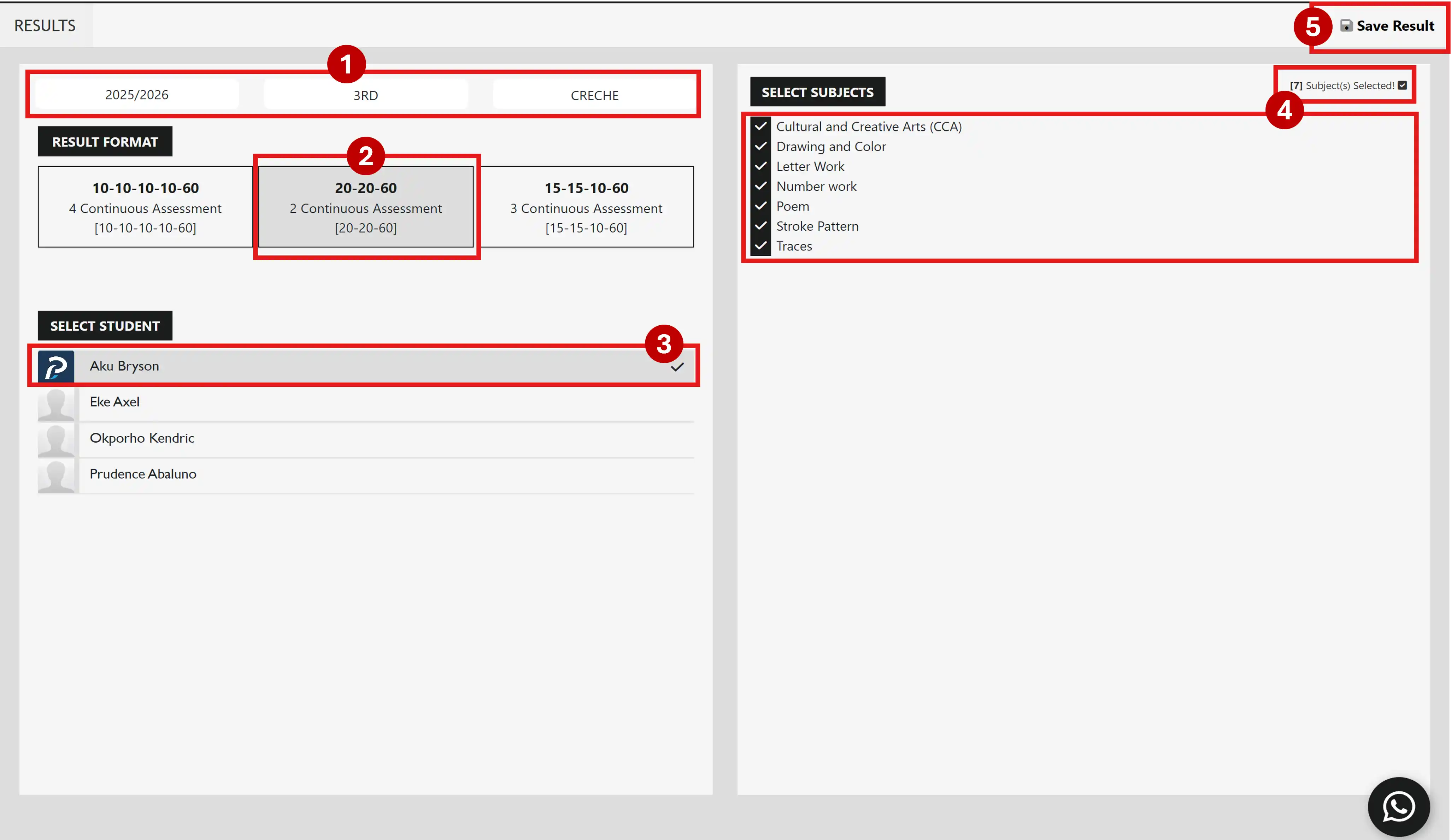
Figure 2
Step 3: Compiling Grades, Attendance, and Remarks
- Log Total Attendance: In the central form panel, enter the student's attendance records in the Total Attendance and No/time fields (marked as
1in Figure 3.). - Add Teacher Remarks & Comments: Use the dropdown menu to select a general Teacher Remark status (e.g., PASS) and type out a detailed, personalized evaluation in the Teacher Comment field (marked as
2in Figure 3.). - Input CA and Exam Scores: Move over to the interactive Results Sheet grid on the right side of the screen (marked as
3in Figure 3.). For each active subject, enter the student's numeric grades for CA1, CA2, and Exam.The SchResult engine will automatically compute the Total, assign the correct alpha Grade (A, B, C, D, F), and populate the performance Remark dynamically as you type.
- Save Your Progress: Once all text fields and subject scores are completed, click the Save Result button with the floppy disk icon in the top right corner (marked as
4in Figure 3.). This securely commits the record to the portal database as an internal administrative draft.
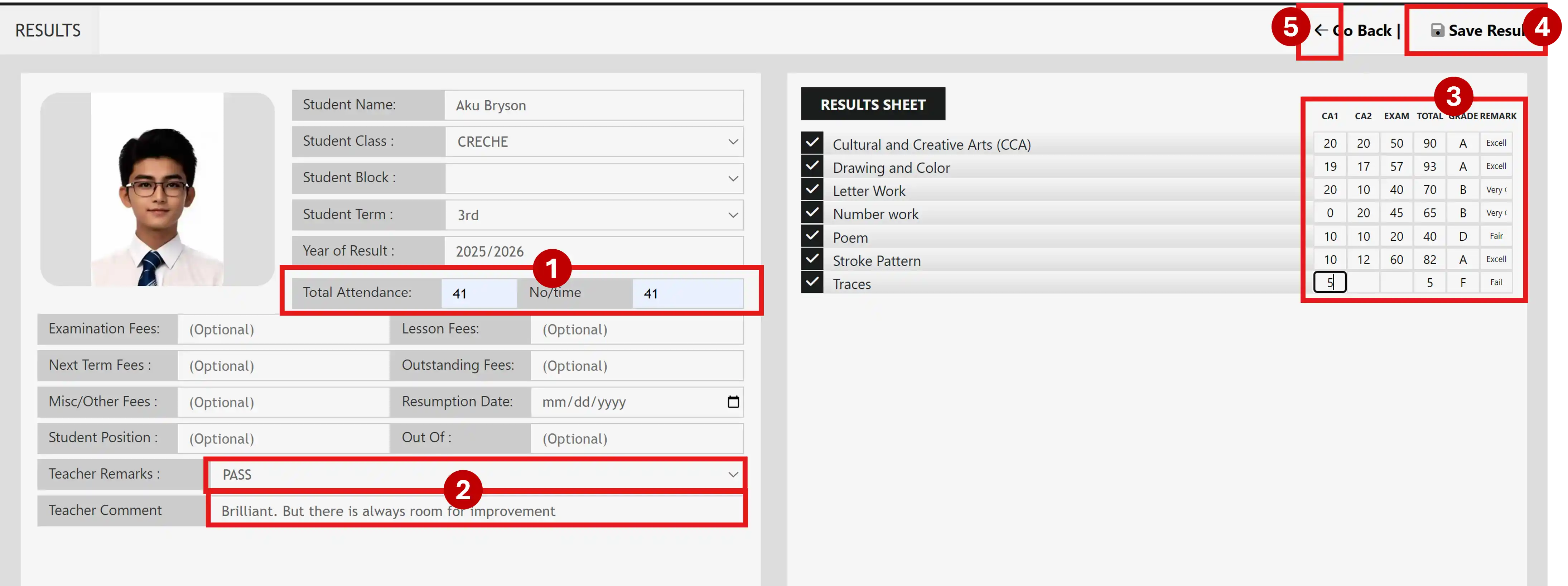
Figure 3
Section 2: Editing and Modifying Saved Results
Mistakes happen during terminal score computations—whether it's a typo in an exam grade, a missing quiz score, or an administrative change to a student's curriculum template.
Step 1: Locate the Student's Saved Sheet
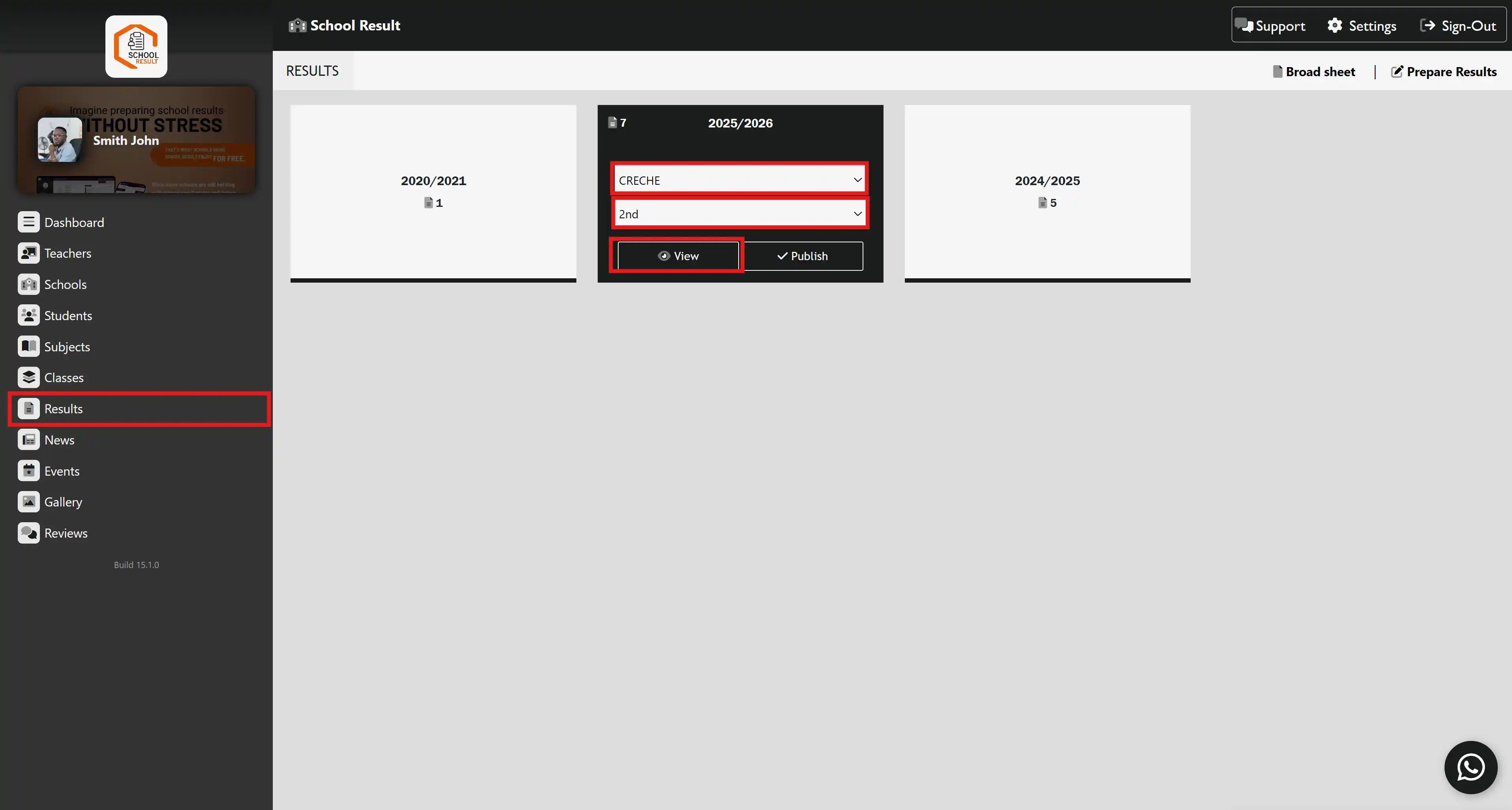
Figure 4
- Access the Results Dashboard: Click on Results on the left-hand navigation sidebar (refer to Figure 4 above).
- Filter by Class and Term: On the session card (e.g., 2025/2026), select the target Class and Term from the dropdown menus (refer to Figure 4).
- Load the Class Roster: Click the View button beneath the dropdown filters (refer to Figure 4).
![Step 2 er.png]()
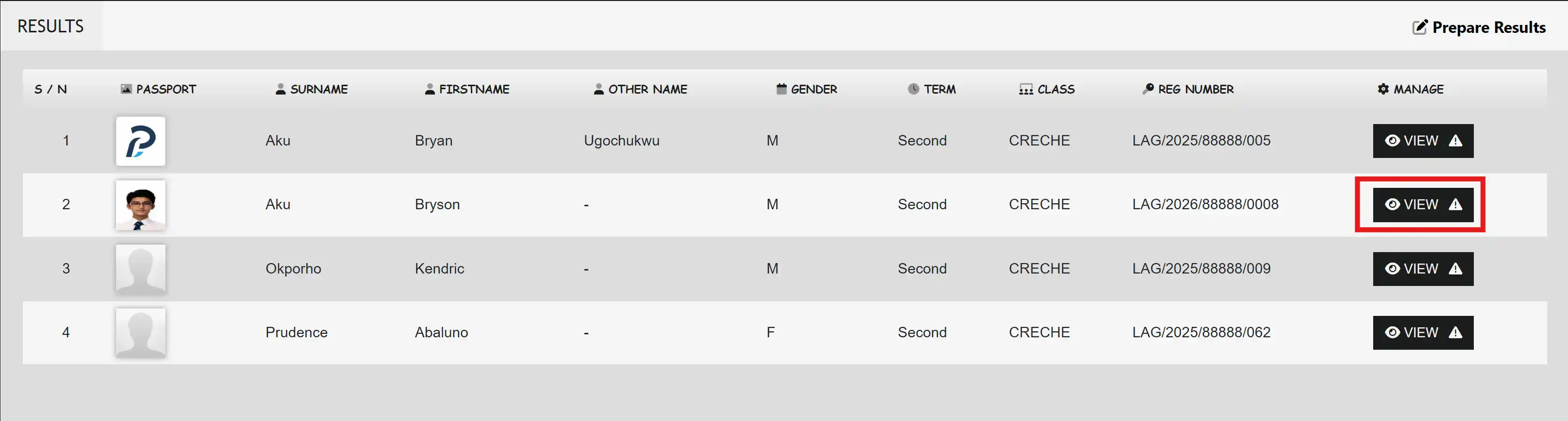
Figure 5 - Open the Student's Profile: On the student directory page that displays, look for the target student's row and click the corresponding black 👁️ VIEW button under the MANAGE column (refer to Figure 5).
Step 2: Overwriting Scores and Managing Subjects
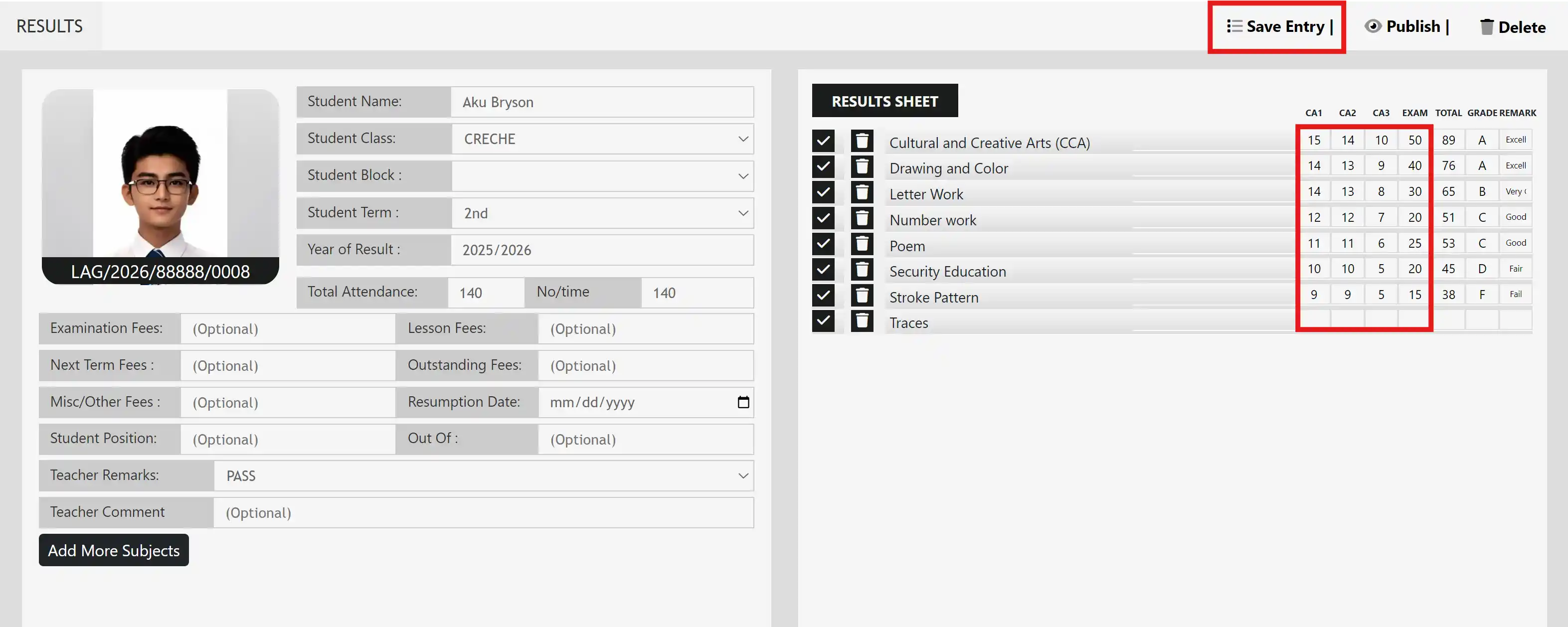
Figure 6
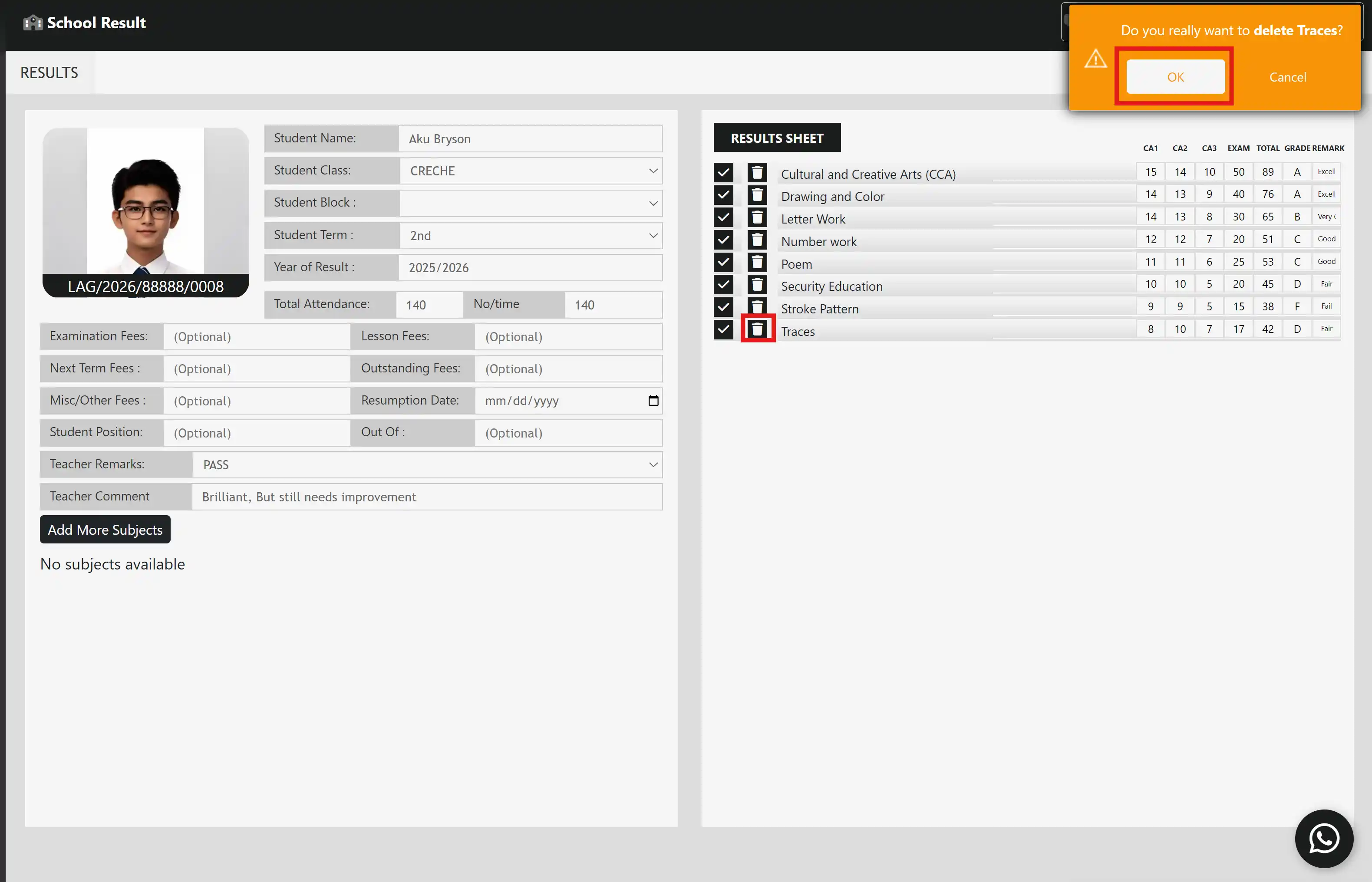
Figure 7
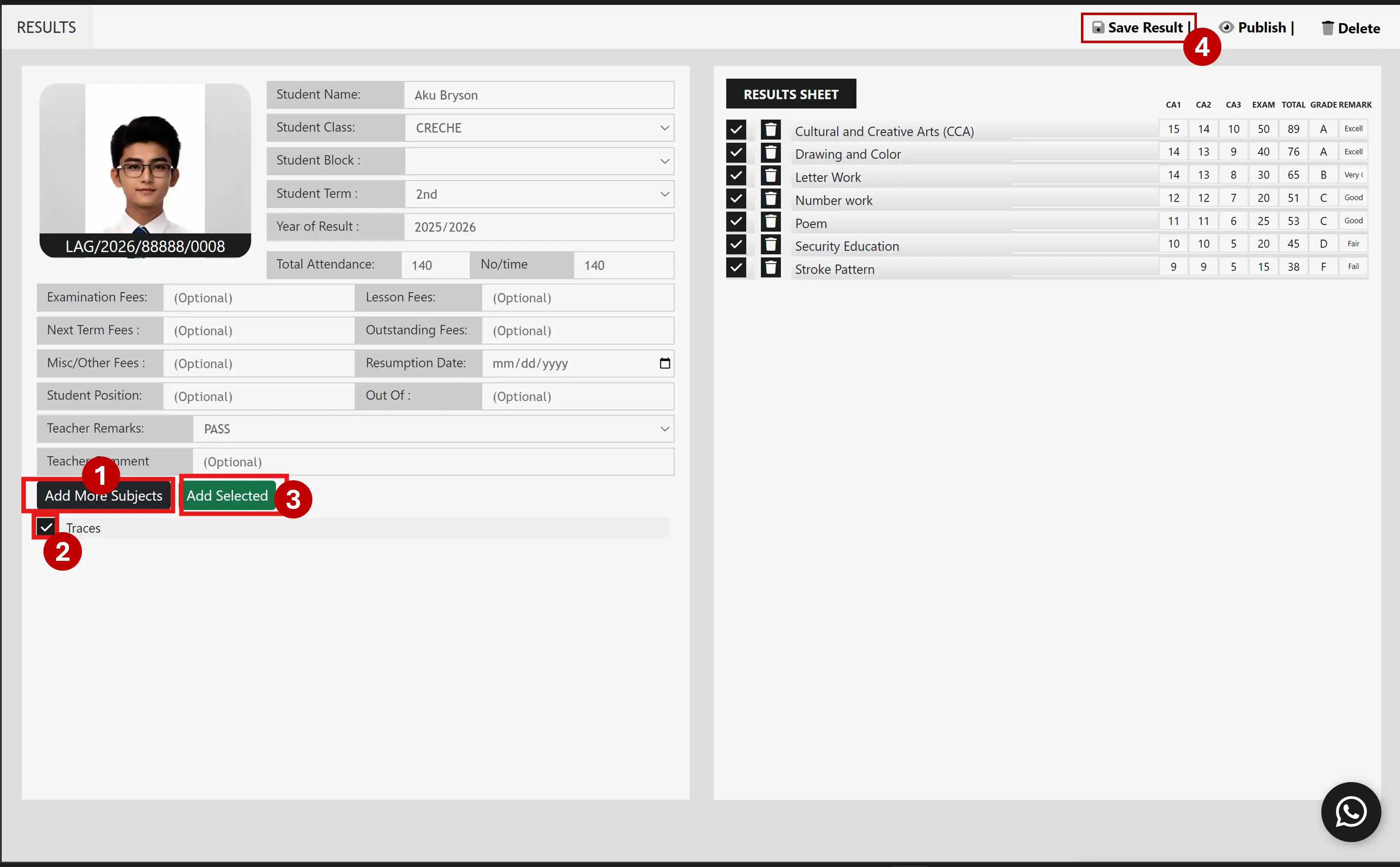
Figure 8
- Editing Existing Scores: Click directly into any numeric input box within the CA's, or EXAM columns to overwrite an incorrect grade (refer to Figure 6). The system will automatically update totals, grades, and remarks in real-time.
- Removing an Incorrect Subject: Click the specific trash can icon on the row of the subject you wish to discard (refer to Figure 7). When the warning dialog appears at the top-right corner asking, "Do you really want to delete [Subject Name]?", click the orange OK button to confirm (refer to Figure 7).
- Adding New Subjects: Click the black Add More Subjects button at the bottom-left of the workspace (refer to Figure 8). Check the boxes next to the new courses you need to introduce from the checklist, and click the green Add Selected button (refer to Figure 8). Fill in their scores on the right-hand grid.
- Always click the Save Result button in the top utility header to lock in your modifications (refer to Figure 8).
Section 3: Publishing Compiled Results Online
With your terminal scores accurately verified and audited, the final phase is deployment. Publishing results officially changes their status from internal drafts to public records, allowing parents and students to access them securely.
Schools can choose between two convenient publication workflows depending on their current task scope:
Method 1: Publishing Direct from Session Cards (Batch Class Release)
If you want to release report cards for an entire specific arm or tier right from your primary control workspace:
- Navigate to the primary navigation menu on the left sidebar and click on Results (refer to Figure 9).
- Go to the current academic session card block (e.g., 2025/2026). Use the dynamic dropdown menus to select the specific Class and Term you are ready to authorize (refer to Figure 9).
- Click the ✓ Publish button located inside the lower right portion of that black session card (refer to Figure 10). The portal will process and batch-publish the selected class segment.
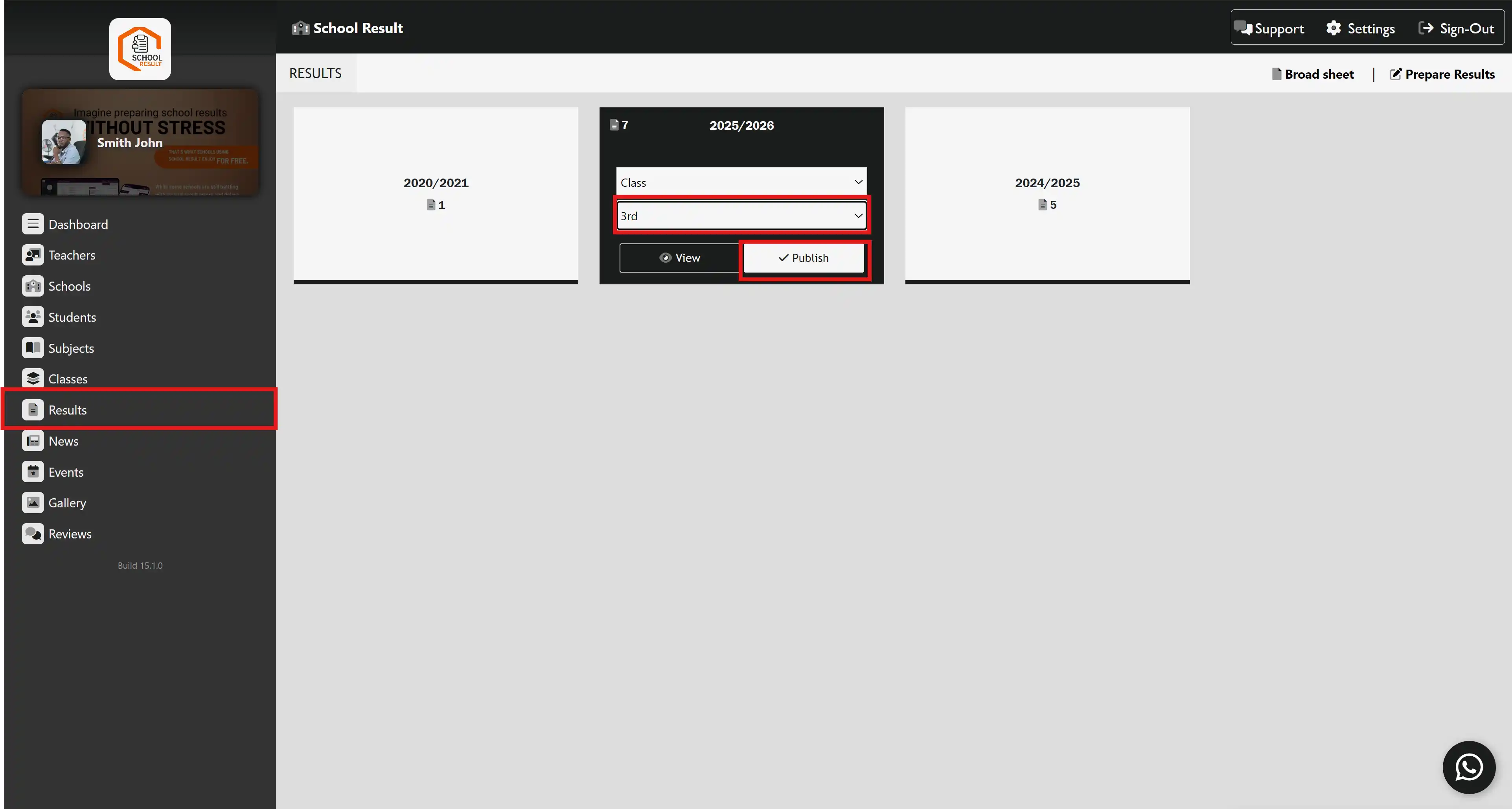
Figure 9
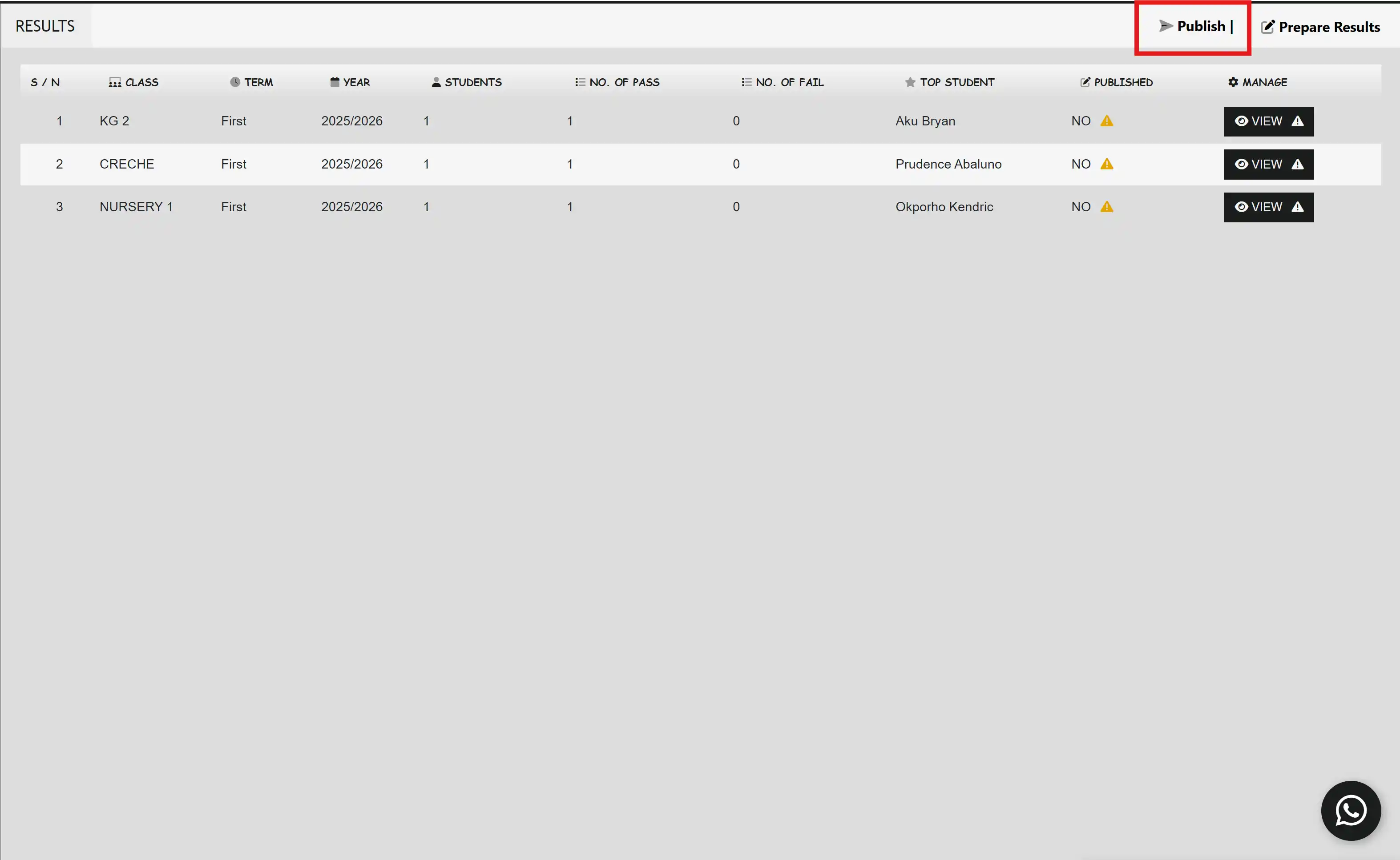
Figure 10
The portal will immediately launch the records live and publish an automated article informing the publich that the result is out

 UK Jobs - Group

 Join WhatsApp


