


Setting up your school portal's academic curriculum accurately is one of the most important steps to ensure smooth report card generation. On schresult.com, managing what your students learn is split into two straightforward processes: adding your custom school subjects and mapping them to their respective classrooms.
This comprehensive, step-by-step administrator guide walks you through exactly how to configure both modules in just a few clicks.
Part 1: How to Add a Custom Subject
While the platform comes equipped with an extensive list of pre-configured Master Subjects, your institution may offer specialized courses unique to your curriculum.
Step 1: Navigate to the Subjects Section
Log in to your administrative dashboard. Move your cursor to the primary navigation sidebar located on the left-hand side of the screen and click on Subjects. As illustrated in figure 1-2, this action will open up your main subject management repository.
Step 2: Open the New Subject Creation Panel
Look towards the upper right-hand corner of the main display block. Click on the + New Subject button highlight highlighted in subjects.jpg to initiate the creation process.
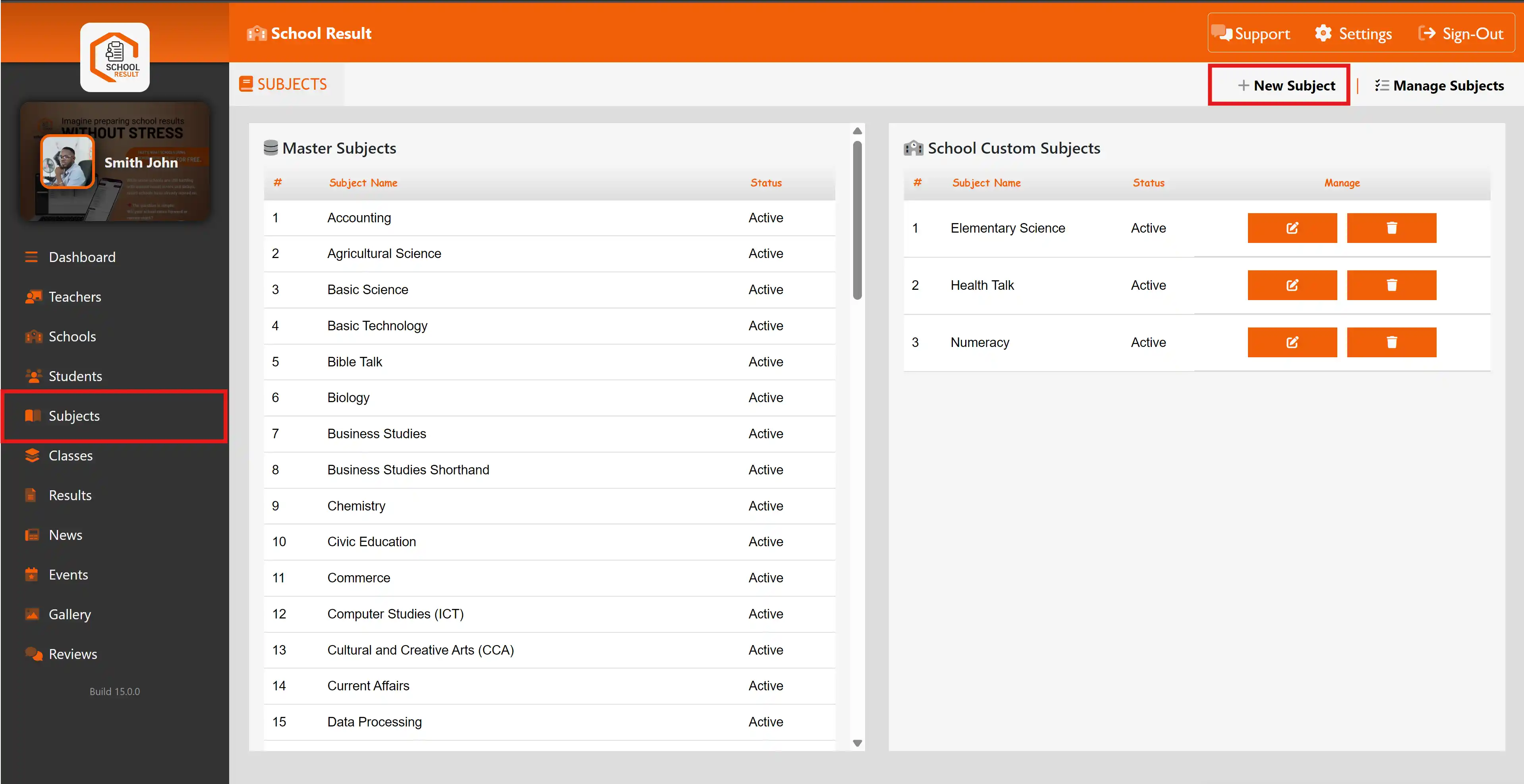
Figure 1
Step 3: Input Subject Details and Save
You will be automatically redirected to the Create New Subject utility page shown in Subject Saved.png.
-
Subject Name: Type the title of your course (e.g., Numeracy) into the designated text field.
-
Status: Ensure the dropdown menu is toggled to Active so it is ready for deployment.
Commit Changes: Click the Save Details button positioned in the top right corner. Your brand new course will immediately populate under the School Custom Subjects table.
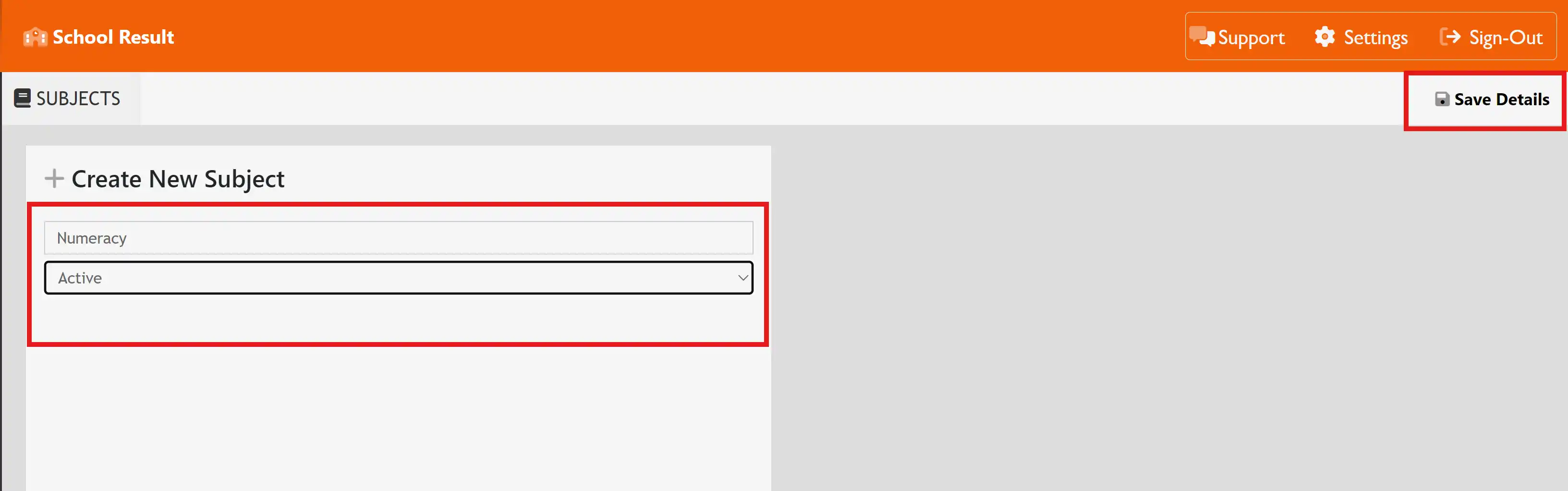
Figure 2.
Part 2: How to Assign Subjects to Specific Classes
Once your institution’s custom subject catalog is ready, you must allocate those topics to the correct grade levels. This ensures teachers see the correct courses when entering student scores.
Step 1: Access the Subject Allocation Matrix
Return to the primary Subjects control board. From there, locate and click the Manage Subjects button found in the top right-hand control strip, as highlighted in the figure below.
Step 2: Choose Your Target Class
On the left side of the newly opened management screen shown in figures below, you will see a column titled Classes listing your institution's grade tracks (such as CRECHE, JSS 1, etc.). Click on the specific class you want to configure (e.g., CRECHE).
Step 3: Map the Academic Curriculum
Once your target class is selected, the center and right areas will reveal your comprehensive checklist of standard Master Subjects and Custom Subjects.
-
Scroll through the list and check the boxes next to every subject taught in that specific classroom.
-
For example, for a preschool tier, you might check Cultural and Creative Arts (CCA), Drawing and Color, Letter Work, and Number work as shown in figure 4 below.
Step 4: Finalize and Save
Review your selections to ensure no required courses are omitted. Once verified, click the Save Details button in the upper right-hand corner of the dashboard screen.
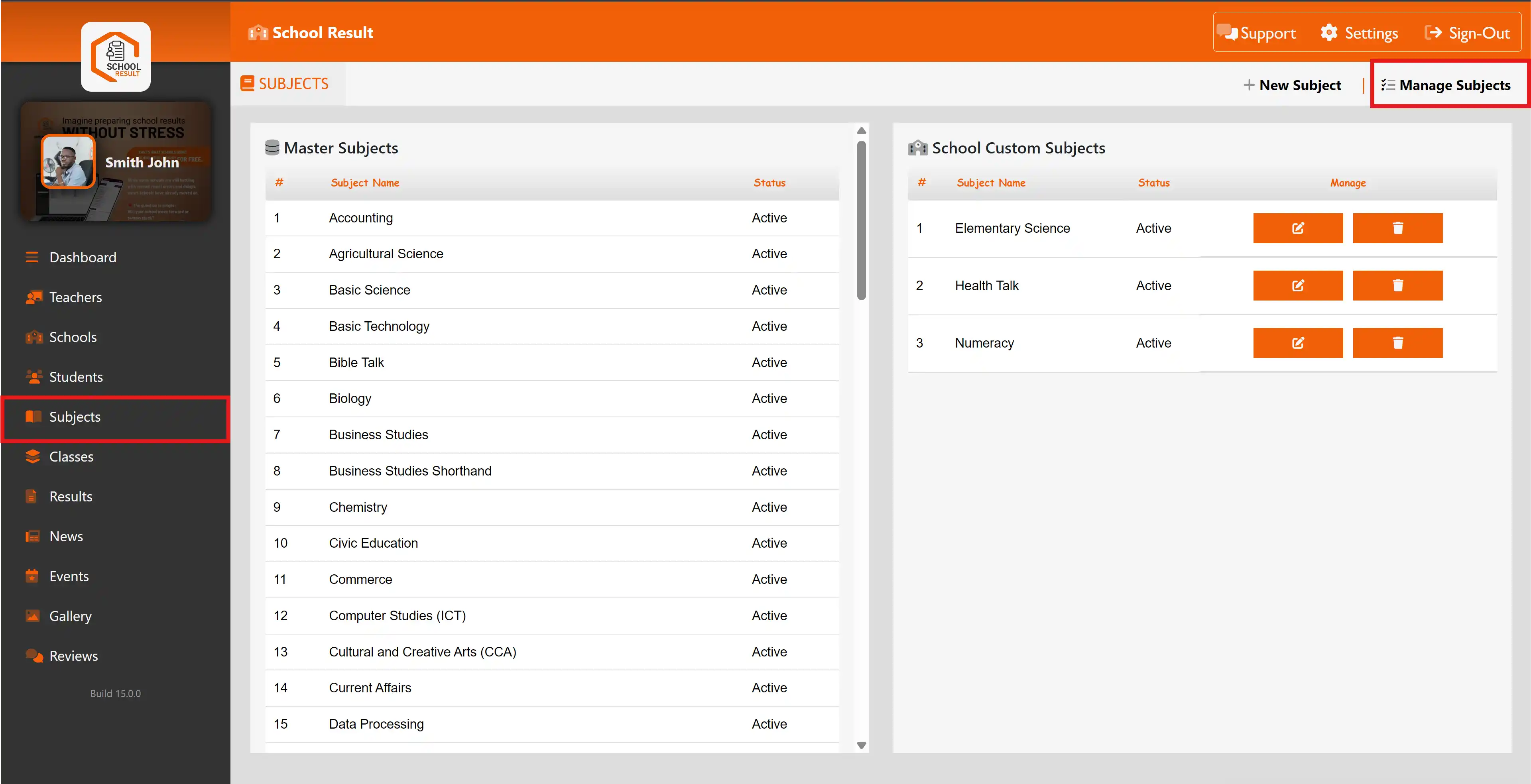
Figure 3.
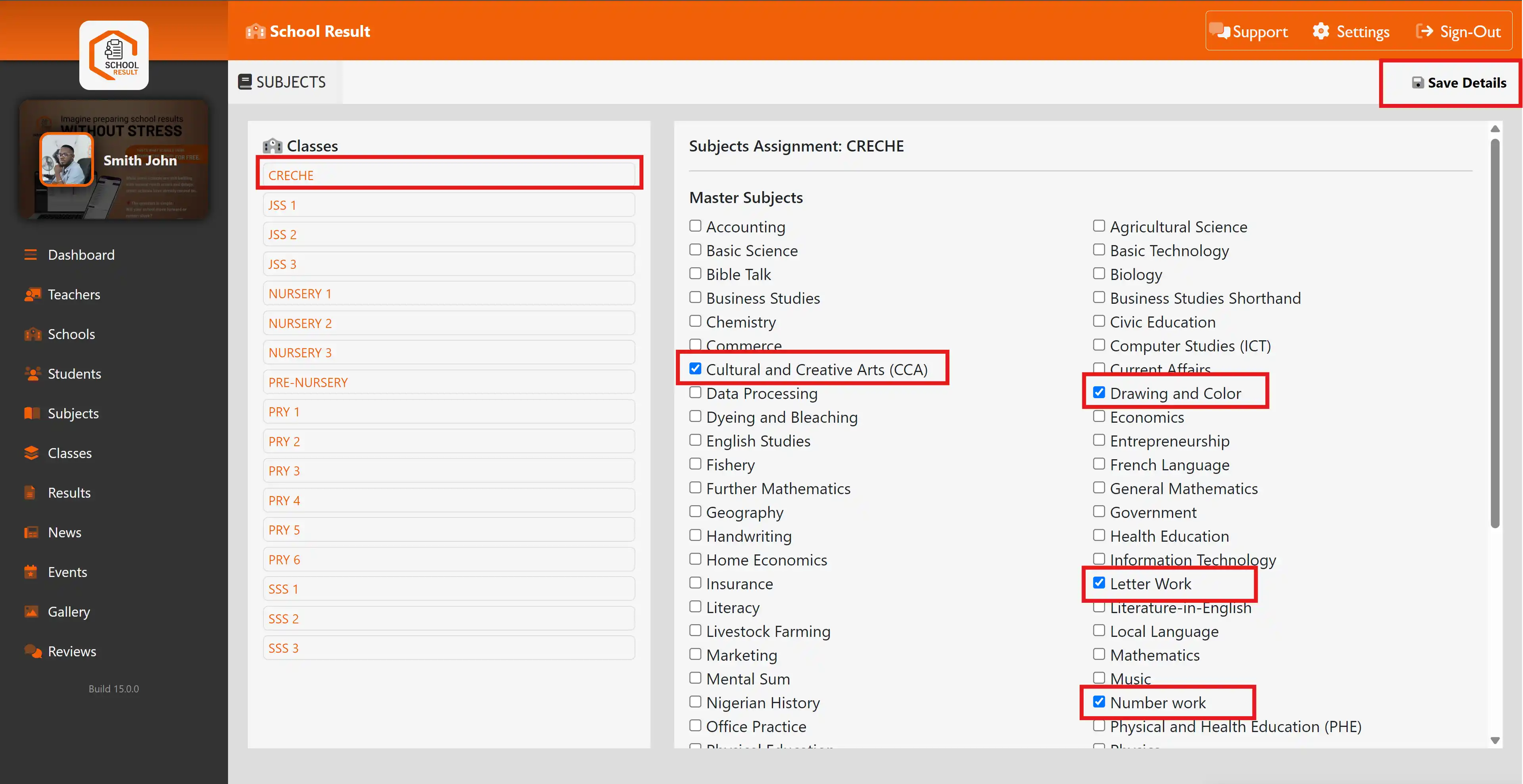
Figure 4
Need Additional Support?
Your class configuration is now fully active! Teachers assigned to these class levels will instantly see these options on their grade-input sheets. If you run into any issues during setup, click the Support icon in the top header menu of your dashboard or Whatsapp Icon for immediate technical assistance.

 UK Jobs - Group

 Join WhatsApp


