


Maximize the efficiency of your school portal using our step-by-step administration tutorial. This comprehensive guide covers how to map class groups, create custom tracks, and structure your Academic Promotion Flow for seamless, automated third-term student transitions.
1. Assigning Master Classes to School Groups
The portal uses a structured three-column mapping interface designed to connect your broad Class Groups with specific Master Classes (e.g., CRECHE, NURSERY 1, PRY 1).
Properly assigning these toggles dictates what options teachers can see when inputting grades and compiling report sheets.
Execution Blueprint:
-
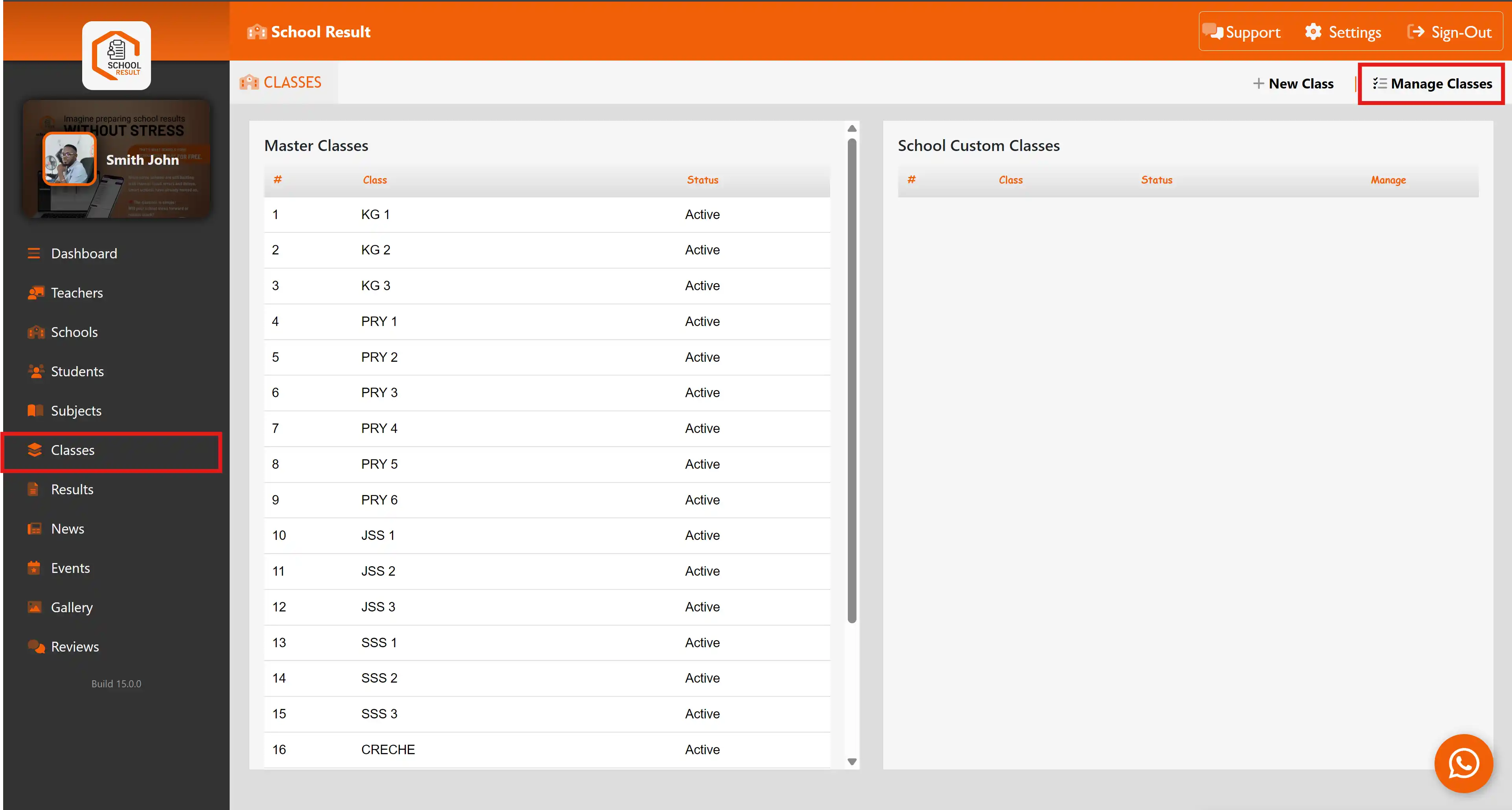
Locate and click on Classes within your left navigation dashboard sidebar menu.
-
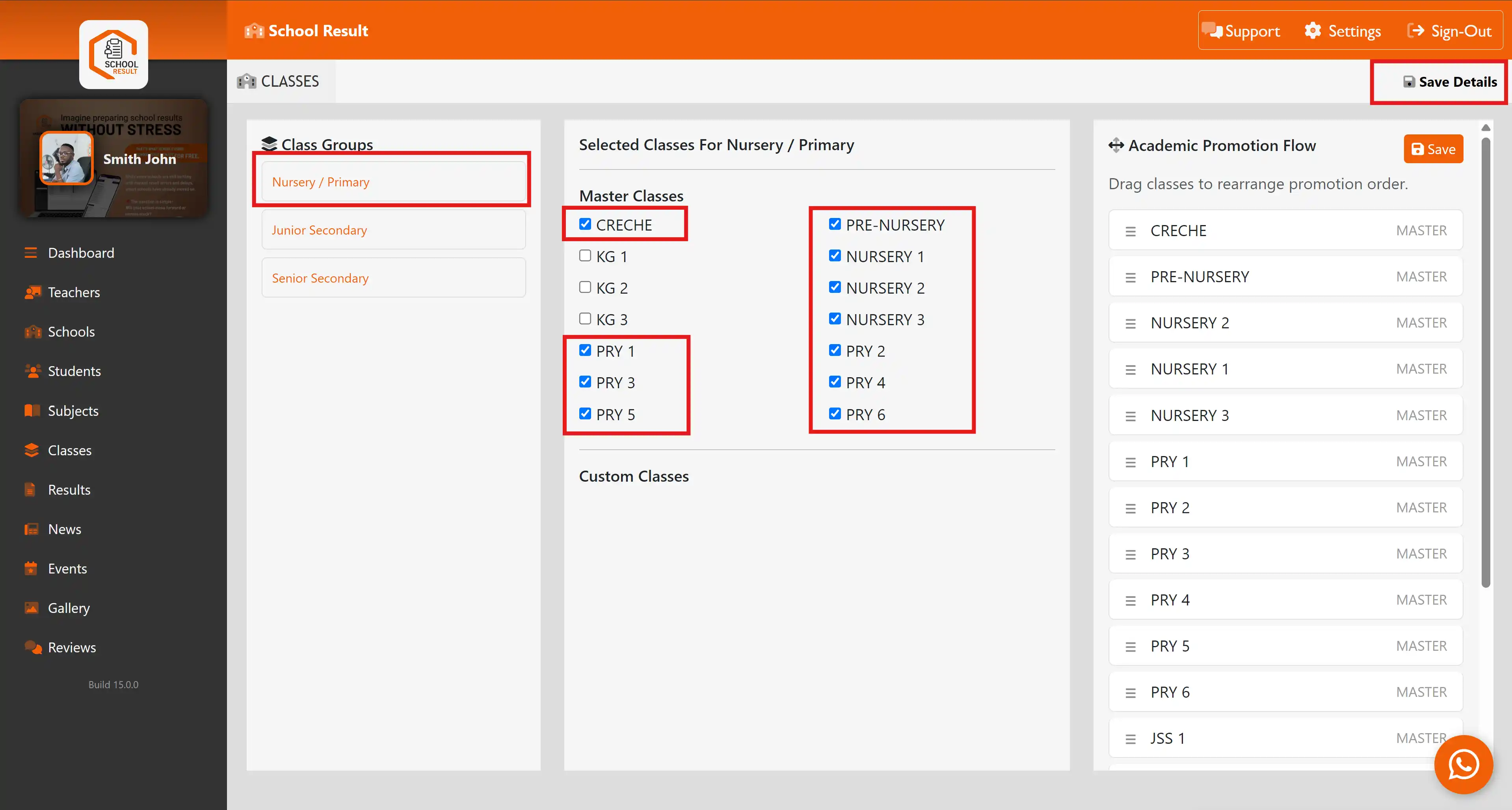
In the top header block area, click the Manage Classes button. This actions a panel switch over to your active mapping grid.
-
On the left side panel labeled Class Groups, select your target sector bracket (e.g., Nursery / Primary).
-
Move your attention to the center pane under Master Classes. You will see a structural layout separating early development cycles:
-
- Select your early foundational tiers: Check CRECHE or PRE-NURSERY.
- Select your targeted primary levels: Check PRY 1, PRY 3, or PRY 5.
-
Once your selection boxes align with the specific arms operational in your physical facility, navigate to the top right corner of the utility bar and click Save Details.
📥 System Backend Behavior: Checking a box instantly whitelists that class for terminal assessment calculations. Leaving a box unchecked (for instance, if your campus does not offer KG 1, KG 2, or KG 3) ensures those specific options remain completely hidden across your staff portal deployment, eliminating clutter.
2. Adding Custom Classes & Specialized Tracks
For schools running unique administrative groupings, military cohorts, or non-standard tracking nomenclatures (such as Jnr Cadet 2), the portal offers a manual creation module that bypasses master presets.
Execution Blueprint:
-
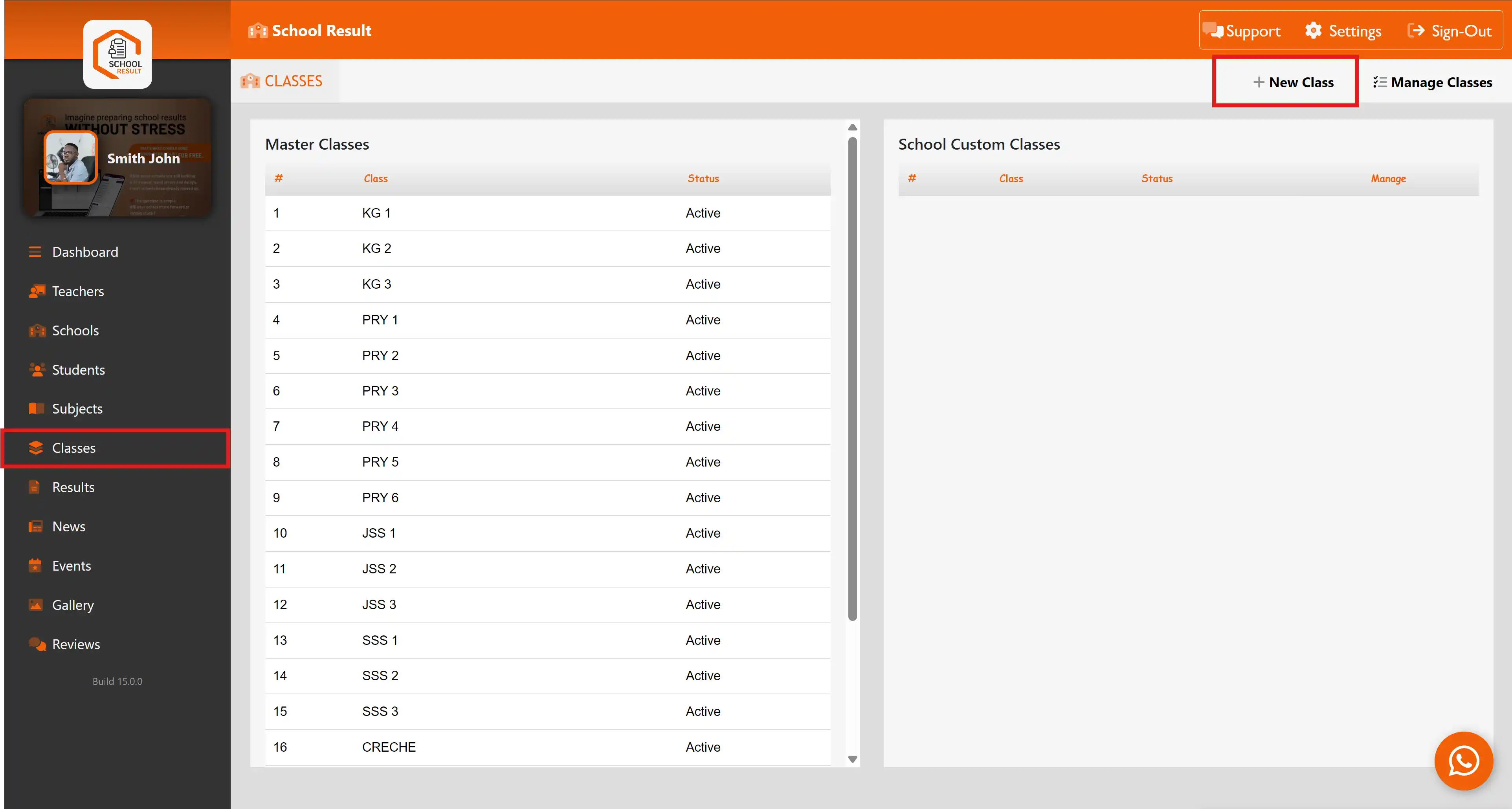
Navigate to the Classes tab on your main sidebar.
-
Click the + New Class button situated in the upper right quadrant of the screen toolbar.
-
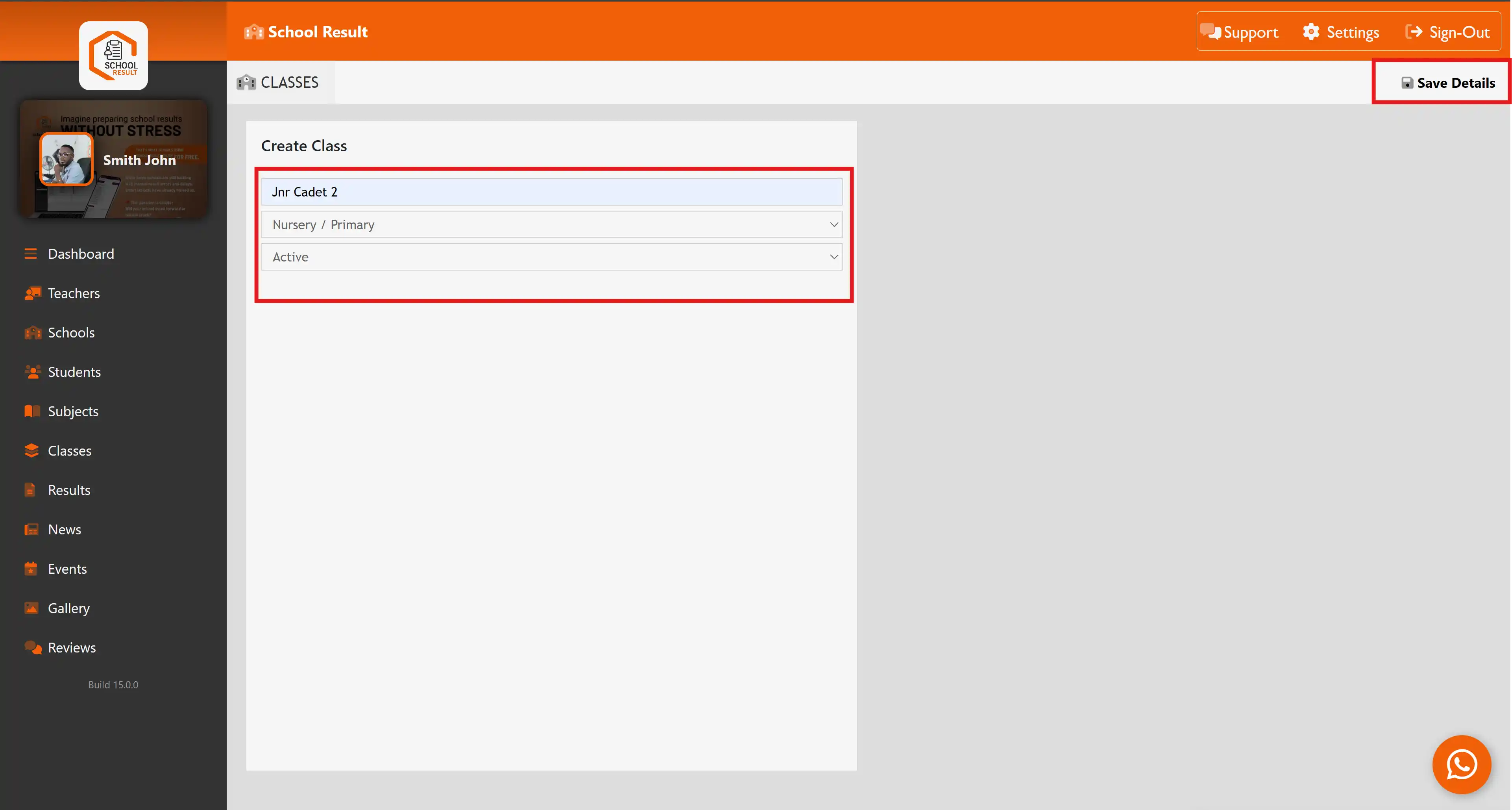
This action opens the Create Class modal canvas on your screen. Complete the configuration form details precisely:
- Class Name Field: Input your custom string label (e.g., type
Jnr Cadet 2). - Class Group Dropdown Selector: Assign this custom variant to its overarching parent tracking container (e.g., select Nursery / Primary).
- Status Parameter Selection: Set this option flag state directly to Active.
-
Confirm your settings changes by clicking the Save Details action link button inside the top header corner.
Once saved, the view shifts back to your dashboard inventory grid, displaying your standard Master
Classes table on the left, and populating your newly created records inside the School Custom Classes table grid on the right.
3. Configuring Third-Term Academic Promotion Flow (Auto-Promotion)
At the conclusion of an academic year, the system runs an automated promotion script during third-term processing. To prevent processing failures—such as a student skipping a level or moving backward—you must explicitly define your school's progression ladder using the drag-and-drop interface.
Execution Blueprint:
-
Return to the Manage Classes view screen.
-
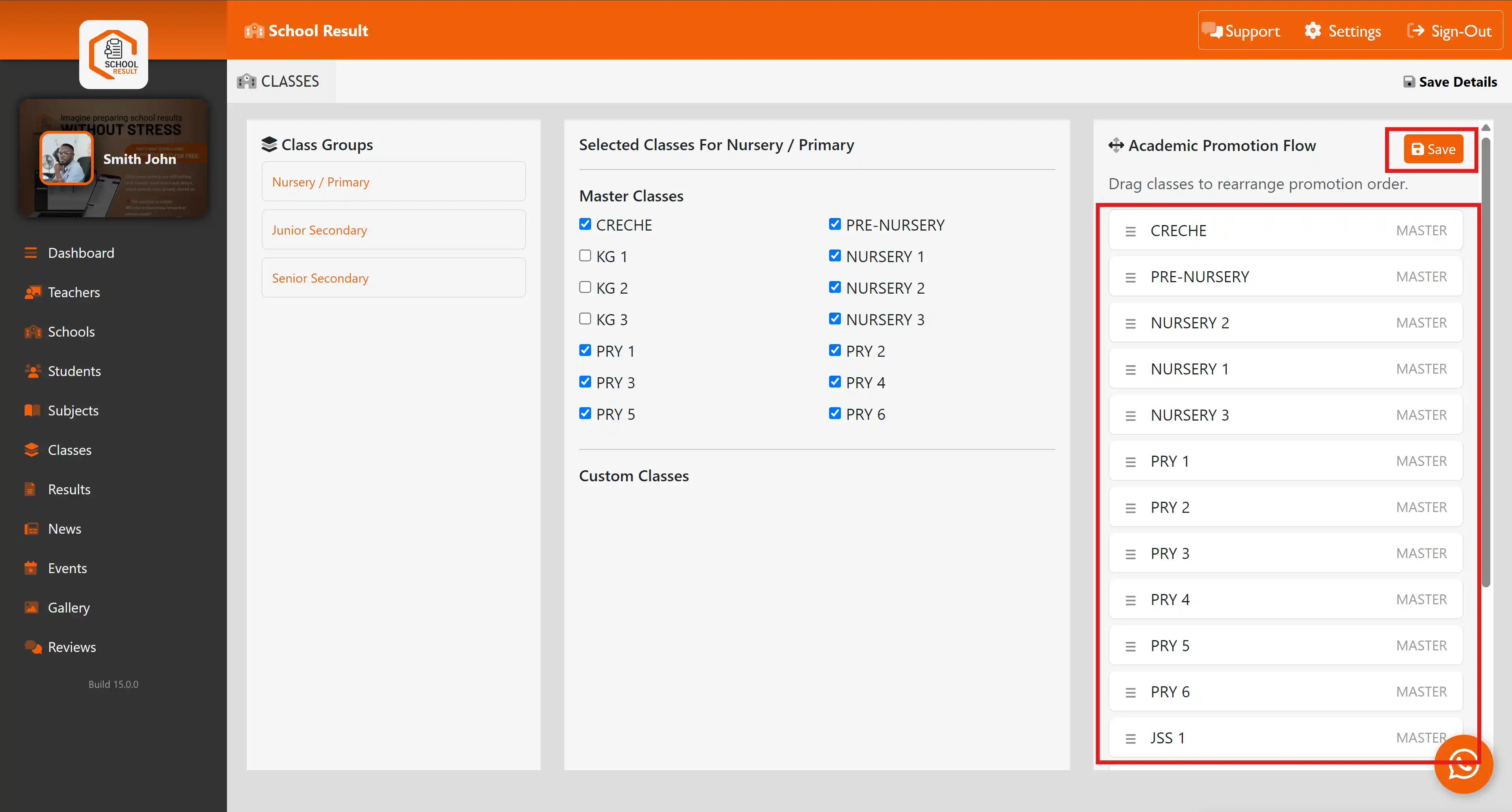
Look at the right-hand column titled Academic Promotion Flow. This area lists every active master and custom class currently recognized by your institution.
-
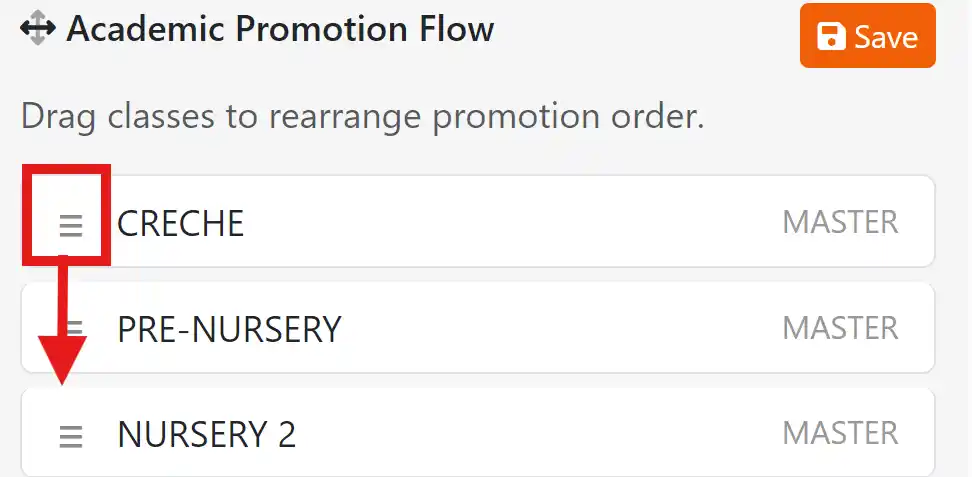
To change a class rank position, hover over the grid handle item icon ($equiv$) on the far left side of the class row box block container.
-
Click, hold, and drag the card vertically to arrange your classes in a strict chronological timeline sequence:
-
Top positions must contain your introductory levels (e.g., CRECHE, followed immediately by PRE-NURSERY).
-
Middle positions must handle numerical graduation stacks sequentially (e.g., NURSERY 1 , NURSERY 2 ,NURSERY 3 , PRY 1 through PRY 6).
-
Bottom positions hold your exit or transition tiers (e.g., JSS 1 onward).
-
⚙️ Automated Promotion Flow Mapping Sequence Template:
The order you set in this column directly determines the student migration path when the third-term boundary triggers:
| Flow Position Index | Active Class Level Identity Card | Action Behavior Status Upon Auto-Run Execution |
| 01 (Highest Entry) | CRECHE |
Promotes directly into PRE-NURSERY |
| 02 | PRE-NURSERY |
Promotes directly into NURSERY 1 |
| 03 | NURSERY 1 |
Promotes directly into NURSERY 2 |
| 04 | NURSERY 2 |
Promotes directly into NURSERY 3 |
| 05 | NURSERY 3 |
Promotes directly into PRY 1 |
| 06 | PRY 1 |
Promotes directly into PRY 2 |
| 07 (Section Exit) | PRY 6 |
Promotes out of primary into Junior Secondary (JSS 1) |
-
Once you have verified that the vertical alignment perfectly matches your actual academic progression layout, click the orange Save button located at the top right of the Academic Promotion Flow panel column to finalize your settings.
![Academic Promotion Flow.png]()
🛑 Critical Verification Notice: Always audit this panel configuration before completing third-term cumulative grading. If classes are misplaced (e.g., placing NURSERY 2 above NURSERY 1), the automation script will advance your students into the wrong grade levels when the new academic year opens.

 UK Jobs - Group

 Join WhatsApp


